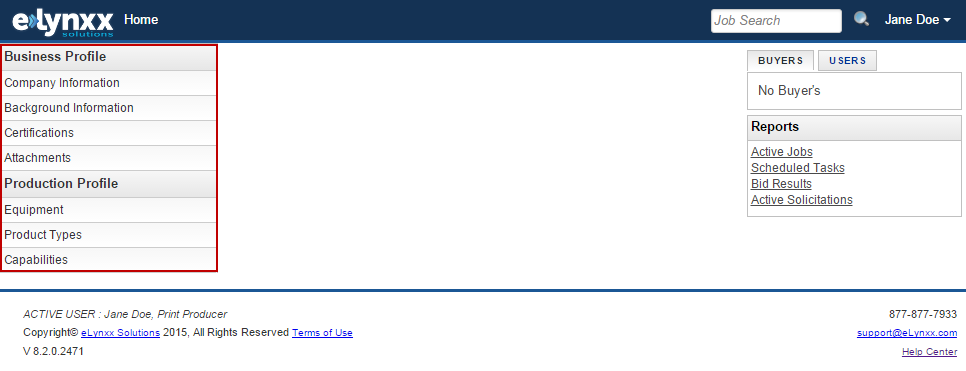
Once you’ve registered for the PrintLynxx and logged in for the first time, you will be presented with a screen requesting that you fill in information about your company and its capabilities. At any point during the completion of these sections, you may put your work on hold by logging out and returning at a later time.
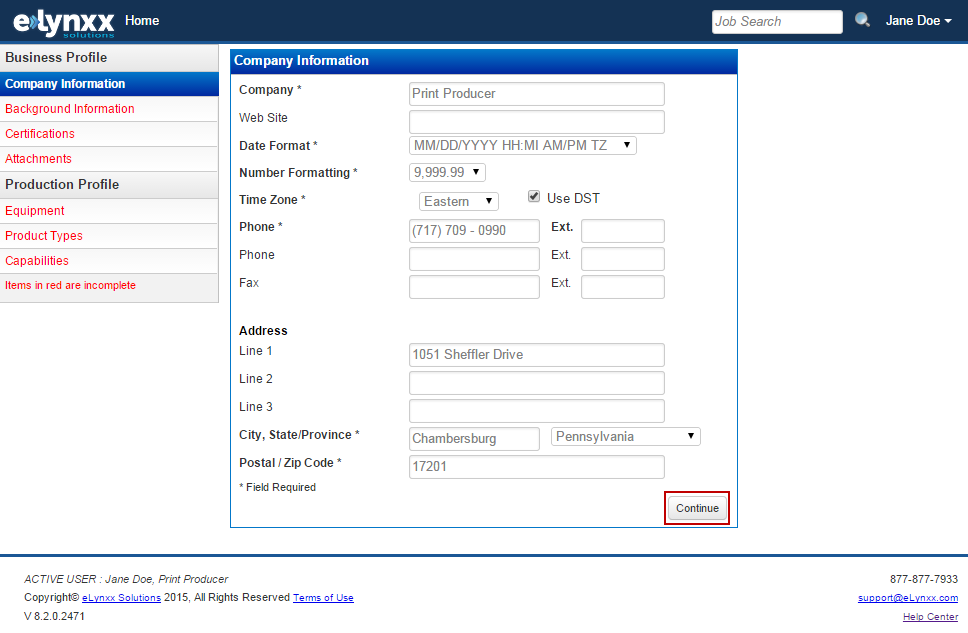
As a general rule, anything that is written in bold with an asterisk beside it is a required field. Please note not all of these fields are required but any additional information that can be given is helpful to both our team and any Client that you may be qualified to receive bids for.
Once you have filled in the information on this page, please click continue to move on to Background Information.
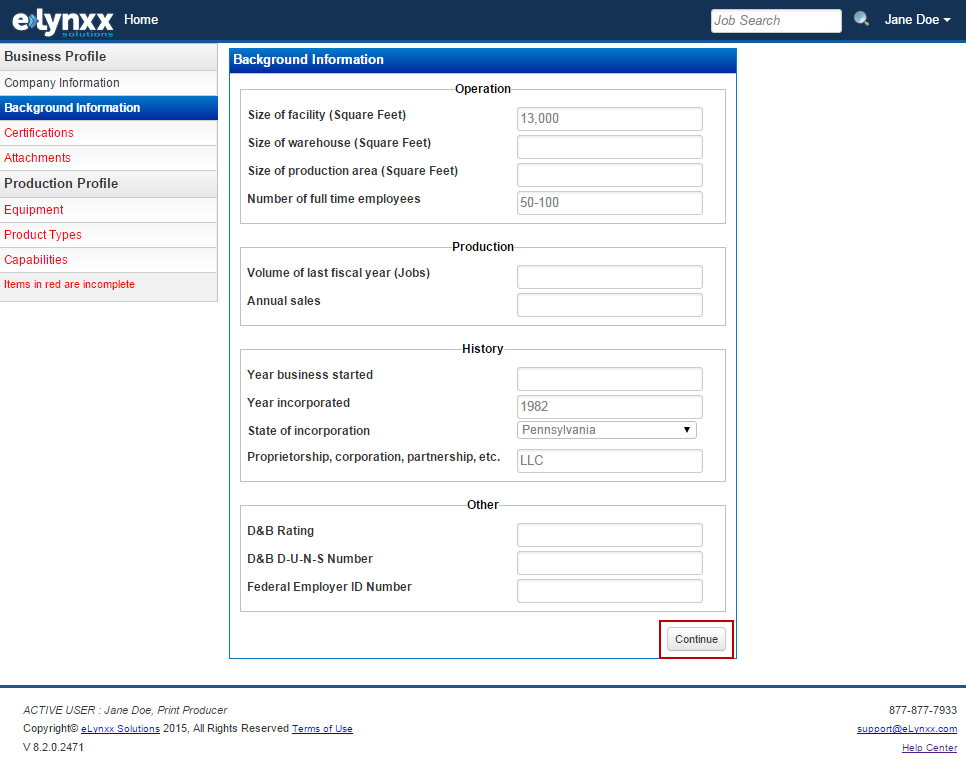
While there are no required fields in this section, any additional information that you can provide regarding your company’s background will be appreciated.
Click Continue to move on to Certifications.
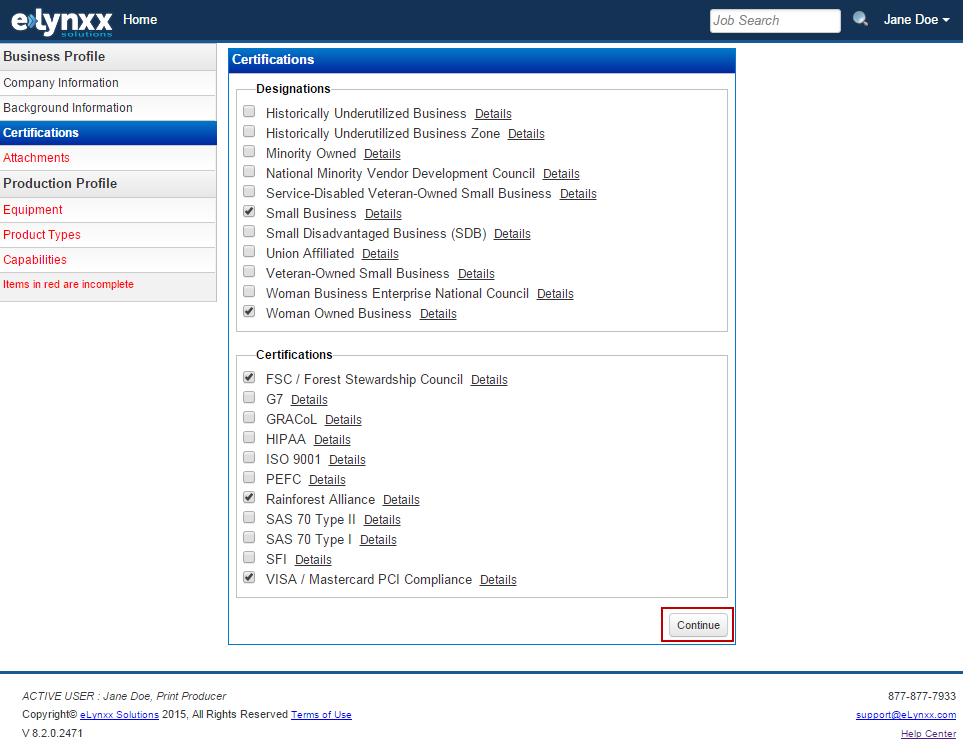
The Certifications section of the Business Profile is an important step, and any certification or designation that your company holds should be selected at this time. If you are unsure of this information, simply click continue, and you will be able to change the information at a later date.
Click Continue to move on to Attachments.
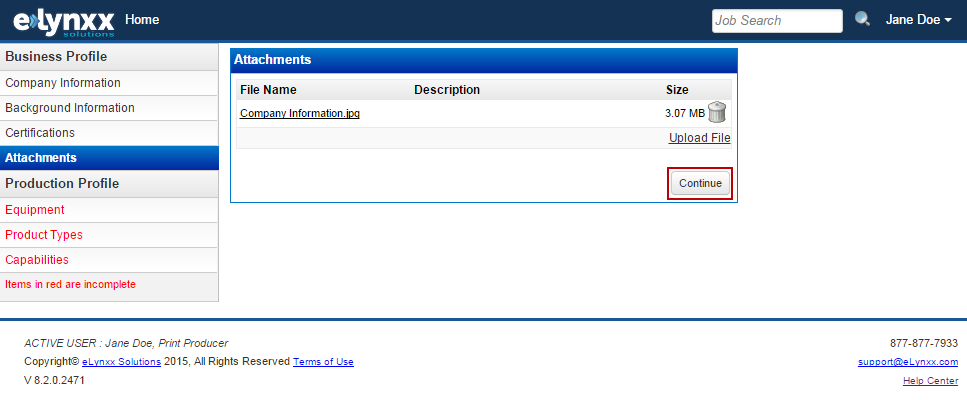
This section is for any additional Company Information that you may wish to provide, such as a company brochure in PDF form. This section is not required if you do not have any attachments at this time.
Click Continue to move into the Production Profile and enter your Equipment List.
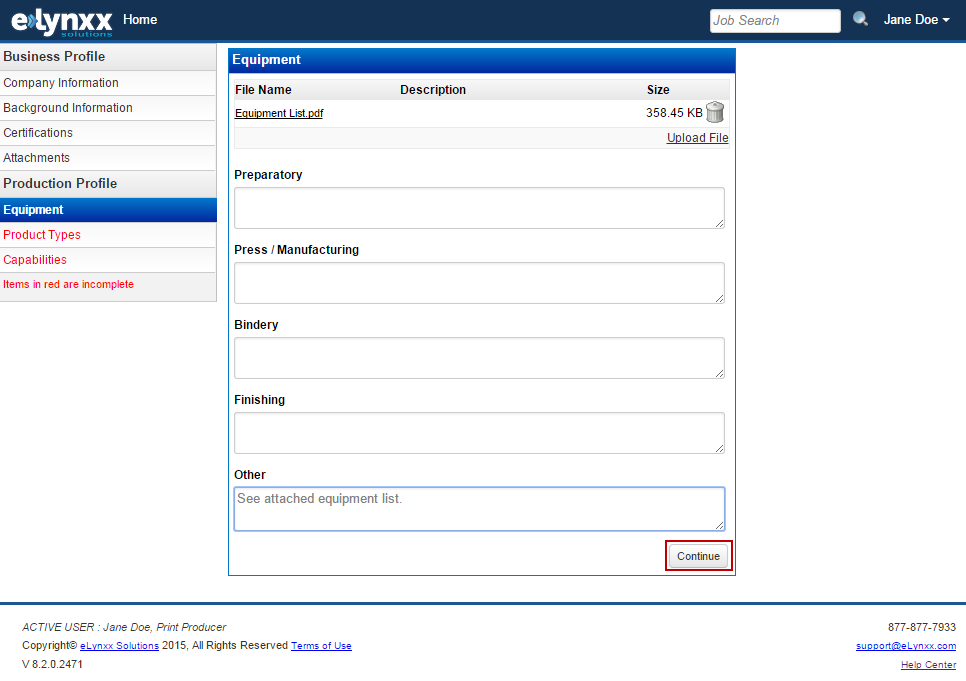
On this section of the Company Information entry, you have the option to either copy and paste or type in an equipment list, or you may choose to upload a list at this time. If you do upload an equipment list, please enter comments in the Other field stating that your list is attached.
Click Continue to move on to Product Types.
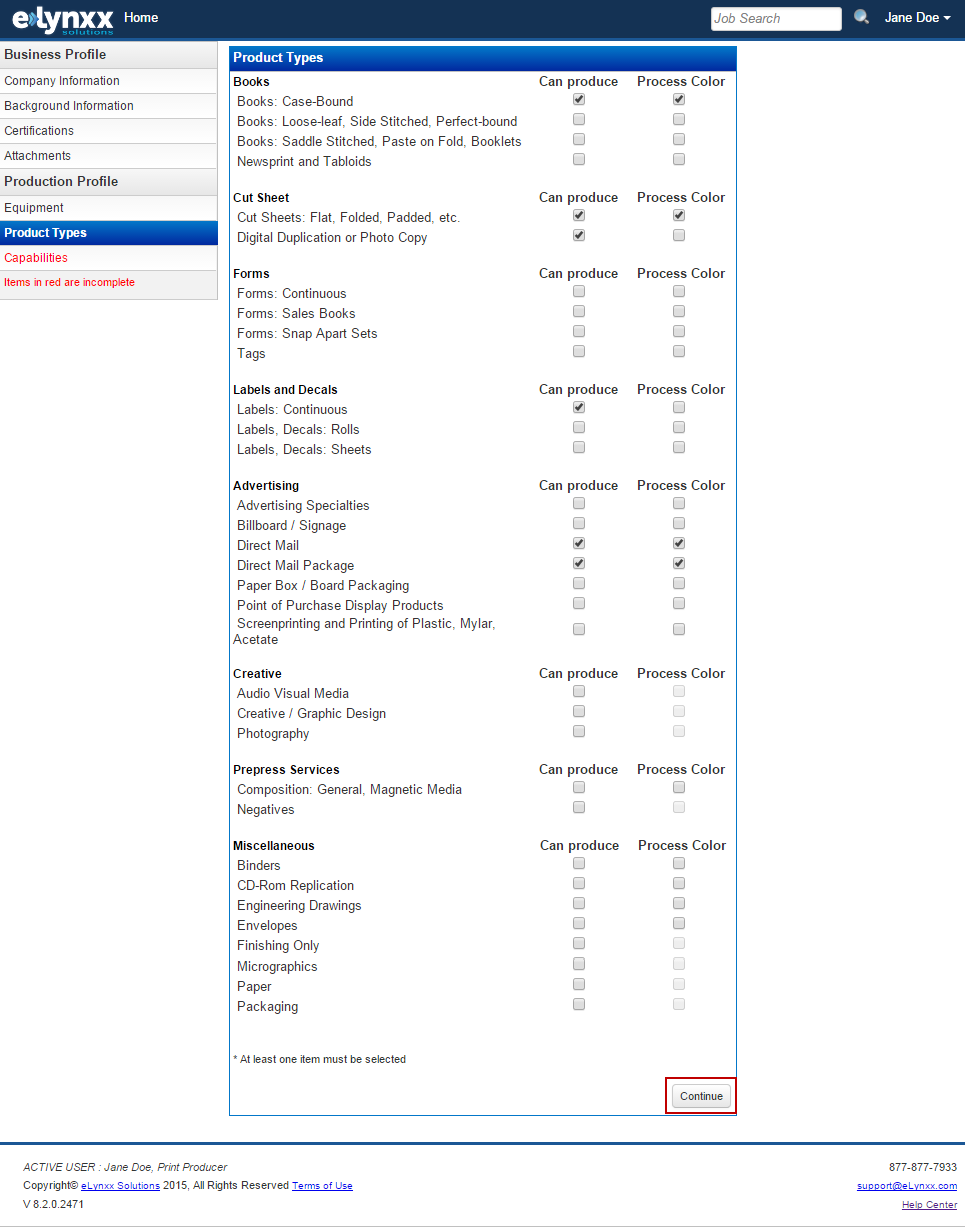
On this screen, please check each box next to the products that your company is able to produce. If you are able to print process color, please select that option as well. This step is important to complete as it will assist in ensuring the solicitations you receive are applicable to the products that your company is able to produce.
Click Continue to move on to Capabilities.
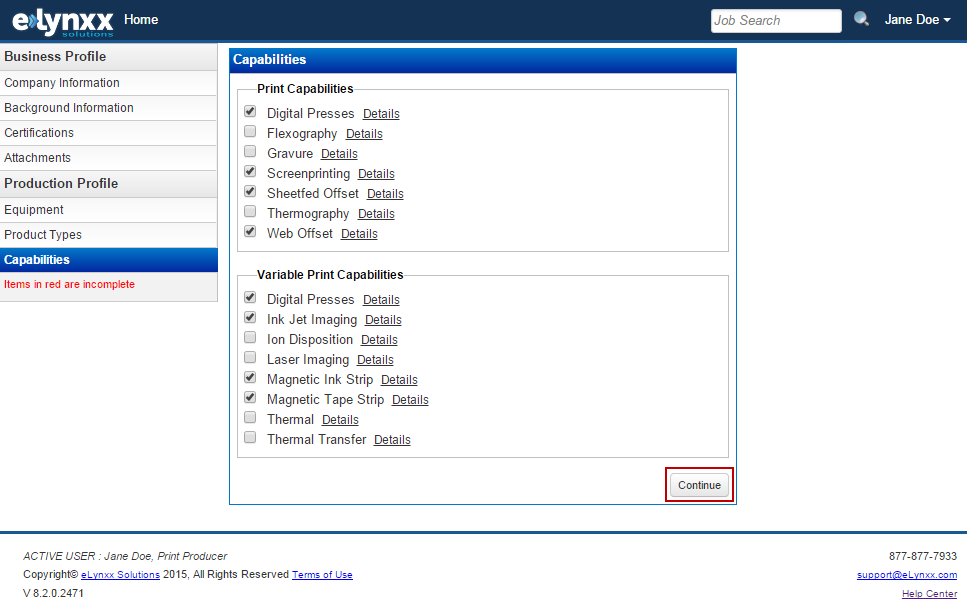
The final screen allows you to check each box next to the Print and Variable Print Capabilities for your company. Once you have checked off your company’s capabilities, click Continue to complete your setup.
At any point, you or any company administrator will be able to click on the sections you just completed to edit or add information to your company profile.